← Back to Blog
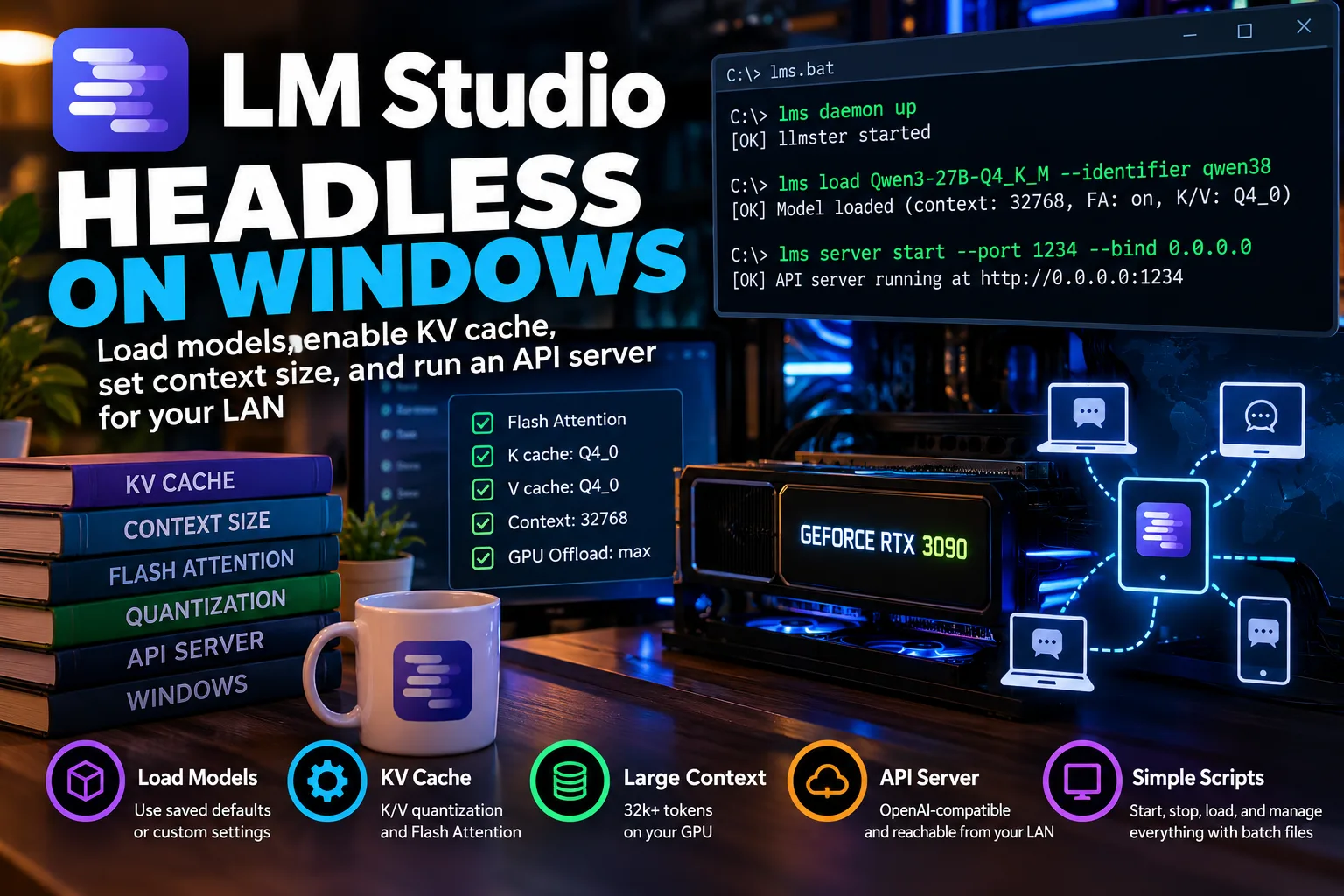
Running LM Studio Headless on Windows: Models, KV Cache, Context Size, and a LAN API Server
9/28/2026
Updated: 9/28/2026
LM Studio is usually associated with its desktop GUI, but it can also run completely headless on Windows. That makes it useful for turning a GPU machine into a small local inference server that other computers can access over the network.
This guide covers the whole setup: model quantization, KV-cache quantization, context size, headless operation with `llmster`, loading and unloading models, exposing the API to the LAN, checking configuration, and automating everything with a batch script.
## Model quantization and KV-cache quantization are different things
Suppose you downloaded a model such as:
```text
Q4_K_M
```
That describes the **quantization of the model weights**.
LM Studio also allows you to quantize the **KV cache**, which is runtime memory used by the attention mechanism while processing context.
For example, you might use:
```text
Model weights: Q4_K_M
K cache: Q4_0
V cache: Q4_0
Flash Attention: enabled
```
These settings are independent.
A `Q4_K_M` model does not require a Q4 KV cache. You could use the same model with F16, Q8, or Q4 KV cache depending on the memory/quality tradeoff you want.
Roughly:
| KV cache | Memory usage | Quality impact |
|---|---:|---|
| F16 | Highest | Lowest |
| Q8_0 | About half of F16 | Usually very small |
| Q4_0 | About one quarter of F16 | More potential degradation |
Q4 KV cache can be particularly useful at large context lengths, where the KV cache starts consuming a substantial amount of VRAM.
For a 24 GB RTX 3090, for example, running a Q4 model with a 32k context and Q4 KV cache can make considerably better use of available VRAM.
## LM Studio versus Ollama KV-cache settings
Ollama also supports KV-cache quantization, but its configuration is somewhat different.
For example:
```cmd
set OLLAMA_FLASH_ATTENTION=1
set OLLAMA_KV_CACHE_TYPE=q4_0
ollama serve
```
This configures Ollama to use Q4 KV cache.
LM Studio can expose separate K and V cache settings, such as:
```text
K cache: Q4_0
V cache: Q8_0
```
That gives LM Studio somewhat finer control.
Another important difference is model configuration persistence. LM Studio supports **per-model defaults**. Once a model has saved load settings, loading it later with `lms load` uses those settings unless you explicitly override them. LM Studio documents context size, GPU offload and Flash Attention as examples of per-model defaults. :chatgpt-content-reference{index="0"}
That makes headless use particularly convenient.
---
# Installing LM Studio's headless daemon
LM Studio's headless component is called **llmster**.
It is independent of the desktop GUI and is specifically intended for servers, GPU machines and other environments where a graphical interface is unnecessary. :chatgpt-content-reference{index="1"}
On Windows, install it from PowerShell:
```powershell
irm https://lmstudio.ai/install.ps1 | iex
```
Once installed, verify that the CLI works:
```cmd
lms --help
```
LM Studio's `lms` CLI controls both the desktop backend and the standalone llmster daemon. :chatgpt-content-reference{index="2"}
---
# Starting LM Studio without the GUI
Start the headless daemon with:
```cmd
lms daemon up
```
You can check whether it is running with:
```cmd
lms daemon status
```
The daemon command is idempotent, so running `lms daemon up` again while it is already running simply reports its status rather than summoning a second copy from the void. :chatgpt-content-reference{index="3"}
To stop it:
```cmd
lms daemon down
```
That command specifically stops llmster. It does not terminate an independently running LM Studio desktop application. :chatgpt-content-reference{index="4"}
---
# Listing installed models
To see models already available on the machine:
```cmd
lms ls
```
Use the model key displayed by this command when loading a model.
For example:
```text
lmstudio-community/Qwen3-30B-A3B-GGUF/...
```
The exact key depends on what you downloaded.
---
# Loading a model
The simplest possible command is:
```cmd
lms load YOUR_MODEL
```
If you have configured per-model defaults in LM Studio, those defaults are applied when the model is loaded, including when loading it through `lms load`. :chatgpt-content-reference{index="5"}
That means you can configure a model once with settings such as:
```text
Context length: 32768
Flash Attention: ON
K cache: Q4_0
V cache: Q4_0
GPU offload: maximum
```
and subsequently use:
```cmd
lms load YOUR_MODEL
```
without specifying those values again.
This is useful because the `lms load` CLI does not expose every low-level llama.cpp option directly.
## Explicitly overriding context length
You can override the stored context setting:
```cmd
lms load YOUR_MODEL --context-length 32768
```
LM Studio defines context length here as the number of tokens available to the model during generation. :chatgpt-content-reference{index="6"}
You could instead use:
```cmd
lms load YOUR_MODEL --context-length 16384
```
or another supported value.
## Explicitly controlling GPU offload
To attempt full GPU offload:
```cmd
lms load YOUR_MODEL --gpu max
```
Other possibilities include fractional offload:
```cmd
lms load YOUR_MODEL --gpu 0.5
```
or CPU-only operation:
```cmd
lms load YOUR_MODEL --gpu off
```
If `--gpu` is omitted, LM Studio can determine GPU use automatically. :chatgpt-content-reference{index="7"}
---
# Giving the model a simple API name
Model filenames are frequently absurdly long because apparently filenames are where model creators store their autobiographies.
You can assign a shorter identifier:
```cmd
lms load YOUR_MODEL --identifier qwen38
```
Applications can then use:
```text
qwen38
```
as the model name in API requests. LM Studio officially supports custom identifiers for this purpose. :chatgpt-content-reference{index="8"}
---
# Checking what models are loaded
Use:
```cmd
lms ps
```
This shows models currently loaded into memory. :chatgpt-content-reference{index="9"}
For machine-readable output:
```cmd
lms ps --json
```
This is particularly useful in scripts.
---
# Checking the active context size
There are a few ways to inspect the running configuration.
First:
```cmd
lms ps
```
For more detailed runtime information, use LM Studio's REST API once the server is running.
For example:
```cmd
curl http://127.0.0.1:1234/api/v1/models
```
The LM Studio APIs can expose information about loaded models such as current context length. Its SDK model information distinguishes between the **currently loaded context length** and the model's theoretical maximum context length. :chatgpt-content-reference{index="10"}
A model might, for example, support a very large maximum context but currently be loaded with:
```text
32768
```
tokens.
Those are not the same value.
---
# Flash Attention and KV cache
When using saved per-model settings, LM Studio can preserve things such as Flash Attention and context configuration across loads. :chatgpt-content-reference{index="11"}
Its runtime load configuration can report fields including:
```text
context_length
flash_attention
offload_kv_cache_to_gpu
```
LM Studio's REST documentation explicitly exposes these as load-configuration properties. :chatgpt-content-reference{index="12"}
For example, a loaded configuration may resemble:
```json
{
"context_length": 32768,
"flash_attention": true,
"offload_kv_cache_to_gpu": true
}
```
Note that this does not necessarily expose the exact K/V quantization type, such as `Q4_0`, in every status response.
Therefore, if you specifically want:
```text
K = Q4_0
V = Q4_0
```
the practical approach is to save those as the model's default load configuration and then let headless `lms load` inherit the model defaults.
---
# Estimating VRAM requirements before loading
LM Studio can estimate memory requirements without actually loading the model:
```cmd
lms load --estimate-only YOUR_MODEL
```
You can test a particular context size:
```cmd
lms load --estimate-only YOUR_MODEL --context-length 32768 --gpu max
```
The estimator takes factors such as context length and Flash Attention into account. :chatgpt-content-reference{index="13"}
This is useful when trying to squeeze a large model into a card such as an RTX 3090 with 24 GB VRAM, because repeatedly loading a model just to discover that VRAM has staged a protest gets old rather quickly.
---
# Starting the API server
Start LM Studio's HTTP server with:
```cmd
lms server start
```
The default local address is normally:
```text
http://127.0.0.1:1234
```
You can explicitly select the port:
```cmd
lms server start --port 1234
```
LM Studio supports OpenAI-compatible endpoints, so many applications that support an OpenAI-style base URL can talk directly to it. :chatgpt-content-reference{index="14"}
---
# Making the server accessible from another computer
By default, the server listens only on localhost.
To make it available across your LAN, bind it to all IPv4 interfaces:
```cmd
lms server start --port 1234 --bind 0.0.0.0
```
LM Studio explicitly documents `0.0.0.0` for this purpose. :chatgpt-content-reference{index="15"}
You can check server status with:
```cmd
lms server status
```
## Windows Firewall
You will probably also need an inbound Windows Firewall rule.
Open **Command Prompt as Administrator** and run:
```cmd
netsh advfirewall firewall add rule name="LM Studio API" dir=in action=allow protocol=TCP localport=1234
```
This allows inbound TCP connections to port `1234`.
Do not expose an unauthenticated LM Studio server directly to the public internet. Binding to `0.0.0.0` makes it reachable beyond localhost, and LM Studio itself recommends authentication when doing so. :chatgpt-content-reference{index="16"}
For a trusted private LAN, that is a much less dramatic proposition.
---
# Finding the server's IP address
On Windows:
```cmd
ipconfig
```
Find the IPv4 address of the relevant network adapter.
For example:
```text
IPv4 Address . . . . . . . . . . : 192.168.1.50
```
Your remote machines would then use:
```text
http://192.168.1.50:1234
```
---
# Testing the server from another machine
First request the available models:
```cmd
curl http://192.168.1.50:1234/v1/models
```
If you loaded the model with:
```cmd
--identifier qwen38
```
you can send a chat request with:
```cmd
curl http://192.168.1.50:1234/v1/chat/completions ^
-H "Content-Type: application/json" ^
-d "{\"model\":\"qwen38\",\"messages\":[{\"role\":\"user\",\"content\":\"Hello. Briefly describe what you can do.\"}]}"
```
For clients that accept an OpenAI-compatible server address, configure:
```text
Base URL:
http://192.168.1.50:1234/v1
```
and:
```text
Model:
qwen38
```
---
# Unloading models
To unload one model:
```cmd
lms unload MODEL_NAME
```
If you used a custom identifier, you can use that identifier where applicable.
To unload everything:
```cmd
lms unload --all
```
LM Studio explicitly supports `--all` for removing every loaded model from memory. :chatgpt-content-reference{index="17"}
You can verify afterward:
```cmd
lms ps
```
---
# Stopping the API server
Stop the HTTP server with:
```cmd
lms server stop
```
Then, if you also want to terminate the headless daemon:
```cmd
lms daemon down
```
A complete shutdown sequence is therefore:
```cmd
lms unload --all
lms server stop
lms daemon down
```
---
# A complete Windows startup script
The following batch file starts the daemon, unloads stale models, loads the desired model and exposes the API server to the LAN.
Save it as:
```text
start_lmstudio_server.bat
```
```bat
@echo off
setlocal
REM ============================================================
REM LM Studio / llmster headless server
REM ============================================================
REM ---- Configuration -----------------------------------------
REM Use the exact model key shown by:
REM lms ls
set "MODEL=YOUR_MODEL_KEY"
REM Short model name clients will use through the API
set "MODEL_ID=qwen38"
REM API port
set "PORT=1234"
REM ============================================================
echo.
echo ==========================================
echo Starting LM Studio headless server
echo ==========================================
echo.
echo [1/5] Starting llmster daemon...
lms daemon up
if errorlevel 1 (
echo ERROR: Could not start the LM Studio daemon.
pause
exit /b 1
)
echo.
echo [2/5] Unloading previously loaded models...
lms unload --all
echo.
echo [3/5] Loading model:
echo %MODEL%
echo.
REM No context/GPU/KV options are specified here intentionally.
REM LM Studio will use the saved per-model defaults.
lms load "%MODEL%" --identifier "%MODEL_ID%"
if errorlevel 1 (
echo.
echo ERROR: The model failed to load.
echo.
echo Run:
echo lms ls
echo.
echo and copy the exact model key into MODEL above.
pause
exit /b 1
)
echo.
echo [4/5] Starting API server...
lms server start --port %PORT% --bind 0.0.0.0
if errorlevel 1 (
echo.
echo ERROR: Could not start the API server.
pause
exit /b 1
)
echo.
echo [5/5] Checking status...
echo.
lms daemon status
echo.
lms ps
echo.
lms server status
echo.
echo ==========================================
echo LM Studio server is running
echo ==========================================
echo.
echo API model ID : %MODEL_ID%
echo API port : %PORT%
echo Local URL : http://127.0.0.1:%PORT%
echo LAN URL : http://YOUR-PC-IP:%PORT%
echo OpenAI URL : http://YOUR-PC-IP:%PORT%/v1
echo.
echo Test locally with:
echo.
echo curl http://127.0.0.1:%PORT%/v1/models
echo.
echo ==========================================
endlocal
```
The significant choice in this script is this line:
```bat
lms load "%MODEL%" --identifier "%MODEL_ID%"
```
There is deliberately **no**:
```text
--context-length
--gpu
```
override.
That allows LM Studio to use the model's saved per-model loading configuration. LM Studio states that per-model defaults are also used when loading through `lms load`. :chatgpt-content-reference{index="18"}
Thus, if the model was configured with:
```text
Context: 32768
Flash Attention: ON
K cache: Q4_0
V cache: Q4_0
GPU offload: maximum
```
those settings remain the authoritative configuration.
If you instead want the script to force the context size and GPU offload, replace the load command with:
```bat
lms load "%MODEL%" --identifier "%MODEL_ID%" --context-length 32768 --gpu max
```
---
# Optional shutdown script
It is also convenient to create:
```text
stop_lmstudio_server.bat
```
with:
```bat
@echo off
echo Unloading models...
lms unload --all
echo Stopping API server...
lms server stop
echo Stopping LM Studio daemon...
lms daemon down
echo.
echo LM Studio has been stopped.
```
Now the machine can be controlled with two files:
```text
start_lmstudio_server.bat
stop_lmstudio_server.bat
```
A tiny private inference appliance, achieved through the ancient Windows tradition of putting several commands into a `.bat` file and declaring victory.
---
# Useful command cheat sheet
| Task | Command |
|---|---|
| Start headless daemon | `lms daemon up` |
| Check daemon | `lms daemon status` |
| Stop daemon | `lms daemon down` |
| List downloaded models | `lms ls` |
| List loaded models | `lms ps` |
| Load model using saved defaults | `lms load MODEL` |
| Load with API alias | `lms load MODEL --identifier qwen38` |
| Force 32k context | `lms load MODEL --context-length 32768` |
| Force full GPU offload | `lms load MODEL --gpu max` |
| Estimate memory | `lms load --estimate-only MODEL` |
| Unload one model | `lms unload MODEL` |
| Unload all models | `lms unload --all` |
| Start API locally | `lms server start` |
| Start API on LAN | `lms server start --port 1234 --bind 0.0.0.0` |
| Server status | `lms server status` |
| Stop API | `lms server stop` |
| Test API | `curl http://127.0.0.1:1234/v1/models` |
## Final configuration
For a machine such as an RTX 3090 system, a practical configuration is:
```text
Model: Q4_K_M
Context: 32768
Flash Attention: enabled
K cache: Q4_0
V cache: Q4_0
GPU offload: maximum
```
Save those as the model's LM Studio defaults, start `llmster`, load the model without overriding its configuration, and expose the server with:
```cmd
lms server start --port 1234 --bind 0.0.0.0
```
At that point, LM Studio is no longer really a desktop application. It is just a local LLM server sitting on the network consuming electricity and matrix-multiplying with impressive determination.