Taskitty

Taskitty is the most complete Project Planning and Task Management solution within Unity. It has been actively used to track all tasks during Taskitty’s own development, as well as creating Progress Reports and Changelogs.
 
Take a look at the full list of features along with screenshots and videos to get a clear idea of what Taskitty offers.

Taskitty

The most complete Project Planning and Task Management solution within Unity

$25
  • Free updates
  • Online support
  • Unity 2021+

An overview of the most important features available in Taskitty to help you get up and running quickly. If you need help getting started with the asset, be sure to check out the documentation for detailed setup instructions and usage examples.

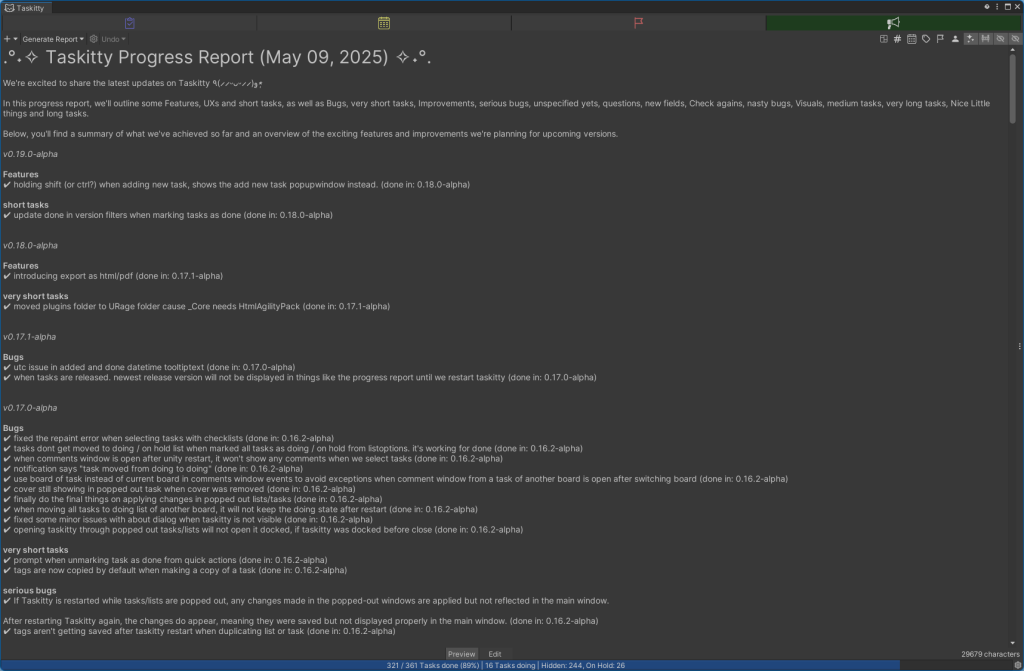
📢 Progress Reporter

Generate detailed progress reports and share them via Discord-Webhooks with your Members or in a Blog Post on your website.

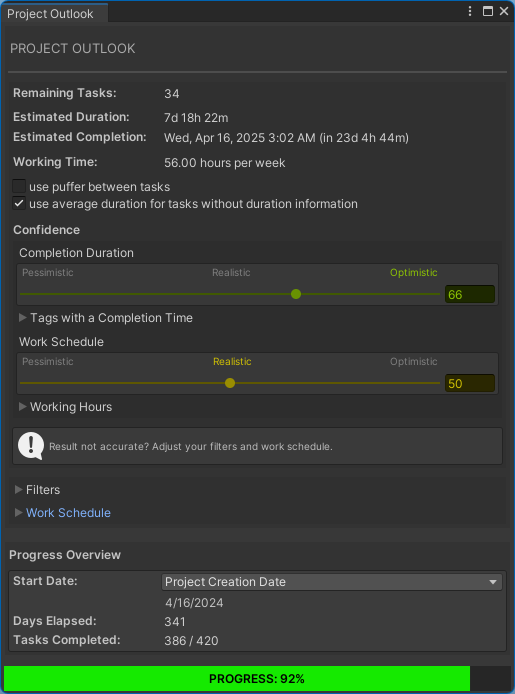
🔮 Project Outlook

Find out the estimated completion time of your Project. Can be extended with other information but yeah tags are basic. It highly varies when u adjust the confidence sliders. It’s meaned to give u a rough idea of what could be realistic.

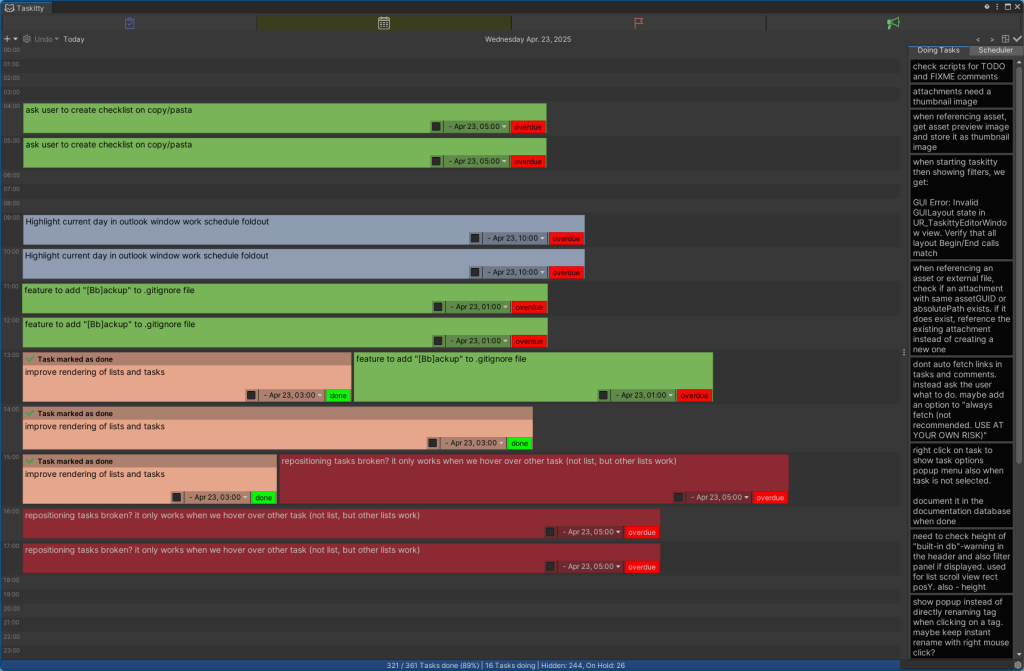
📅 Calendar

Visualize your project timeline with a fully integrated calendar view. Easily schedule, track, and manage tasks and deadlines across days, weeks, or months. Stay on top of important dates and sync your tasks for a clear overview of your workflow.

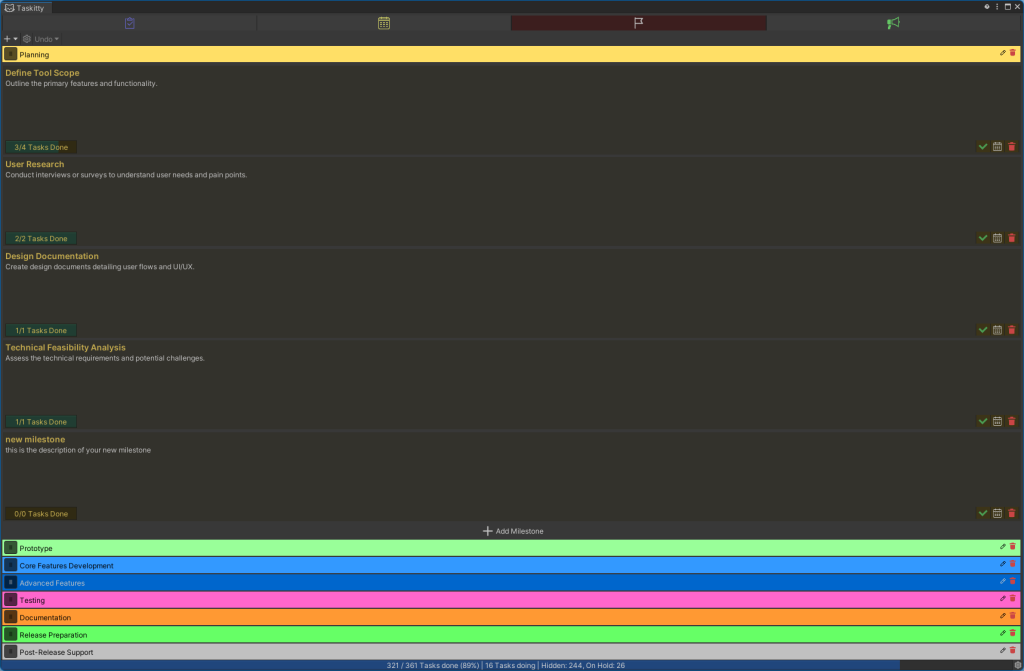
🏴 Milestones

Set and track key project milestones to mark critical points in your progress. Milestones help you celebrate achievements, monitor important deadlines, and maintain momentum toward your project goals.

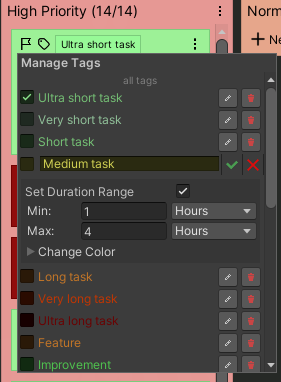
🏷️ Organize Your Tasks with Tags

Enhance task organization with customizable tags, allowing for easy categorization and filtering.
Tags can also have a Duration time. This will be useful for the “Project Outlook”-Feature for more accurate results.
Taskitty comes with a template of default tags to help you getting started.

🤝 Full Trello Integration

Sync your tasks seamlessly with Trello for cross-platform task management.

♾️ Custom Draw Logic for “unlimited” Tasks*

* The RAM is the limit!
Taskitty can load and display almost unlimited Tasks… “at once”. This works, because only the currently visible Lists and Tasks are drawn. We achieved this with own custom scroll views and an optimized draw logic, that only loops through the Tasks that need to be drawn. Because we are using a custom scrollview with custom scrollbars, we can just fake the Scroll Thumb Button size, so it looks like there are more tasks.
This can work even with 100’000 Tasks and more, without slowing down the GUI. Works fine even with Covers, since we properly lazy load images and clean them up when not showing or changing the board or closing Taskitty.
 
Unity would take years to load large amount of Tasks. And even when it’s loaded, you will see the evil “Hold On, Busy for…” popup message – everytime the GUI gets updated! This means, every mouse movement will trigger an update. Want to see this nightmare in action? <Insert Link to Video here>
That’s where our custom solution comes in. No more hiding stuff, no more limitting visible tasks in lists. Just enjoy happiness!
Now your RAM is the limit – not Unity anymore. Yayy!

🔄 Undo/Redo History

Full Undo and Redo History for all actions you’ve made. Also works by pressing Ctrl+Z (Undo) and Ctrl+Y (Redo). When editting Text, you can use these shortcuts to also undo/redo text changes.

🖱️ Draggable Lists & Cards

Easily rearrange your lists and tasks with drag-and-drop functionality.

✏️ Rename On Click

Quickly edit a List name or a Task with a single click.

🔍 Search Tasks

Locate specific tasks by entering keywords or phrases to quickly find the Tasks you are searching for. You can also filter tasks based on various criteria such as due date, priority, assigned member or tags.

📈 Performance

Taskitty includes features designed to prevent slowdowns when entering edit mode if the Taskitty window is opened.

🎨 Custom Colors

Bring in some beauty whereever you need them with custom colors for your Lists, Tasks and Tags!

🙃 Emoji Chooser (Unity 6+)

Requires Unity 6 or higher
Emojis will only be fully displayed in Unity 6
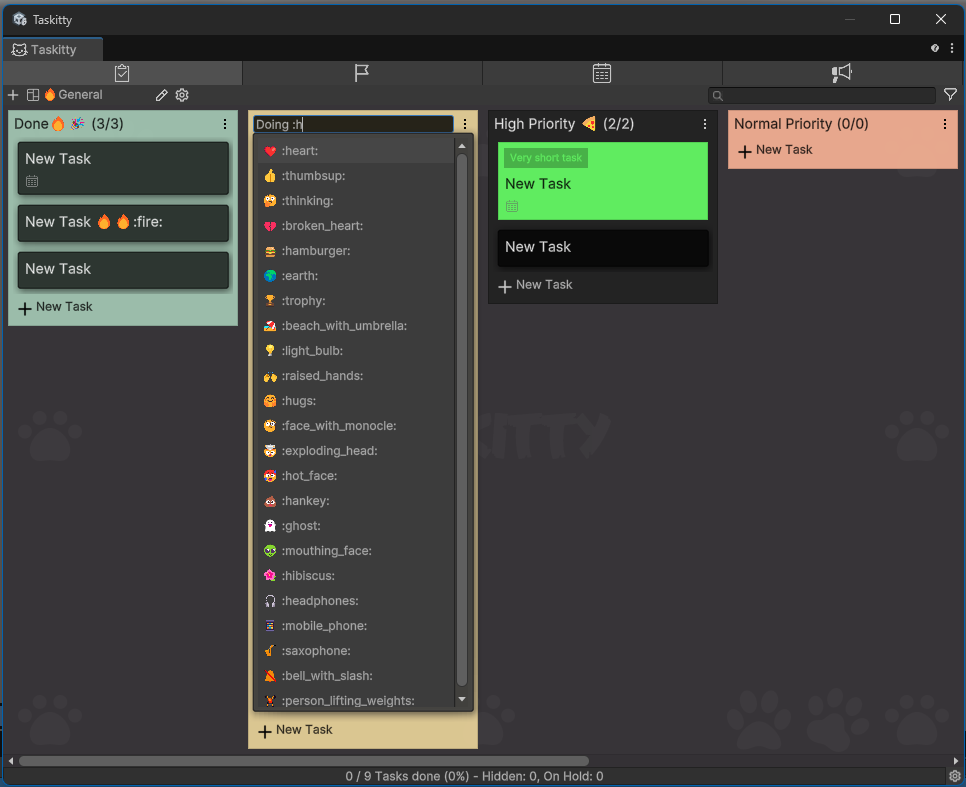
Add emojis to your lists and task. Taskitty comes with a template of default emojis to choose from

 📤 Export and 📥 Import

Export your entire Database or import from an existing one. Also export Tasks, Lists, Boards and Workspaces as 📄text, 🌐html, 📕pdf or 🖼️Image.

🖼️ Customizable Interface

Horizontal/Vertical alignment, adjustable list/task sizes, and custom min/max widths and heights.

💾 Automatic Backup

Automatically creates regular backups of your database from time to time to make sure that you don’t lose important information.

Basics

Hi and welcome to Taskitty

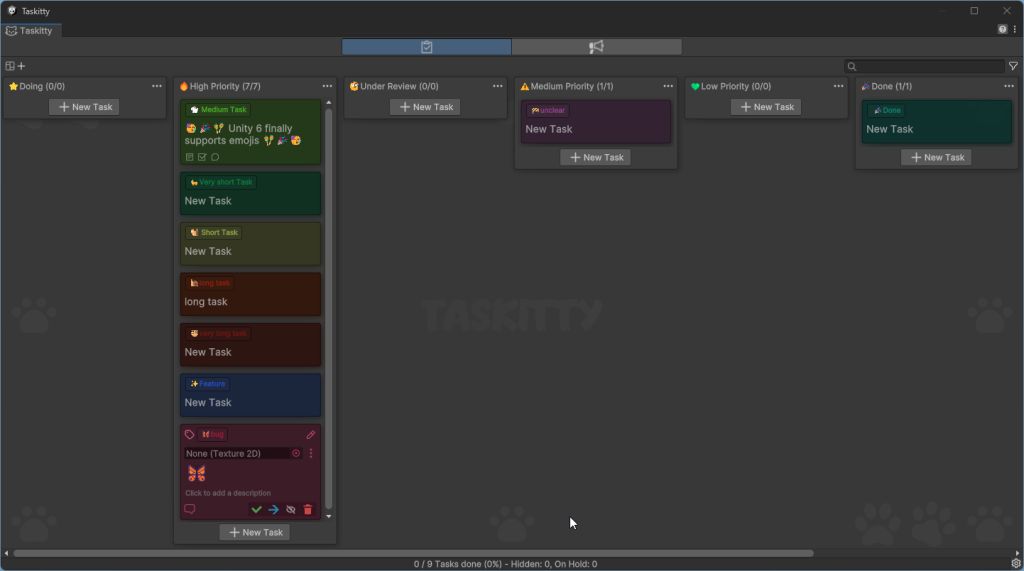
This is the Task view where you create all your Tasks or write down other notes.
Switch through the other views by clicking the Tabs at the top!
ㅤㅤㅤ  ∧,,,∧
(̳ • · • ̳ )
/ づ♡ I love you

Hi, I’m a Task! Click me to select or edit.
enter key – Save changes.
escape key – Discard change
This Task has a Description. It will be displayed when u select
the Task…
You found me! I’m the Task Description. Click to edit me.
Multi-Line Support
Hit Shift-Enter
to insert

a new Line
Tags. They are key in Taskitty, so be sure to use them!
Tags help you to categorize your tasks and give Taskitty more possibilities to offer you additional
functions.
You can add as many Tags you need
Tags
Feature fancy tag
Comments
Add a new Task
Click the “+ New Task” button to add a new Task to this List
Tags
rainer 5/15/2024 3:03:26 PM
You found the comment section of this card, nice!
rainer 5/15/2024 3:03:26 PM
look around if there are more
Feature
Taskitty undo history
(Taskitty needs to be focused)
Ctrl+Z – Undo Last Action
Ctrl+Y – Redo Action
Ctrl+U – Show Taskitty History
The Taskitty History can also be accessed through the Unity Menu Bar under Edit – Undo History
(Taskitty)
Tags
Feature
Milestones
Click the flag icon in the upper left corner of a selected task to assign it to milestones.
Milestones can be managed in the Milestones Tab
Milestones
Concept Development
Tags
Feature
Comments
Comments can be used to write down your progress on a specific Task. They could become helpful at a
later point in time ;) click the bubble icon in the bottom left of a task to go to the comment section
Tags
Feature
Comments
Task Covers
Click the cover to set a new one
Tags
Feature
Add Attachments
Add Files like scenes, prefabs, materials as a unity reference to your Task. Any file format is supported.
Tags
Feature
Comments
rainer 5/15/2024 3:03:26 PM
You found the comment section, nice
rainer 9/28/2024 2:03:26 PM
click on a comment to select it
rainer 9/28/2024 4:03:50 PM
Hotkeys
F2 – edit a comment
Del – Delete a comment
Checklists
Click the pencil icon in the top right corner of this task to open the Task Options. Select “Add Checklist”
to add a Checklist to this Task
This is a Checklist
☐ Select a Todo to rename or delete it
☐ Toggle Todos
☐ add a new todo with the button below

🙏 Don’t forget to rate our asset and leave a comment!
Your feedback keeps us motivated to create more awesome tools for you